| Toolbar | Modify |  | ||
| Pull-down | Modify Scale Scale | |||
| Keyboard | SCALE | short-cut | SC | |
The Scale command can be used to change the size of an object or group of objects. You are prompted for a pick point about which the selection set will be scaled. Scaling can then be completed by picking a second point (not always easy because it can sometimes be difficult to precisely control the scaling) or by entering a scale factor at the keyboard. For example a scale factor of 2 will double the size of the objects in the selection set and a factor of 0.5 will half them.
 Command Sequence
Command: SCALE
Select objects: (pick objects to be scaled, P1)
Select objects: (to end selection)
Specify base point: (pick base point, P2)
Specify scale factor or [Reference]: (pick second point, P3 or enter scale factor)
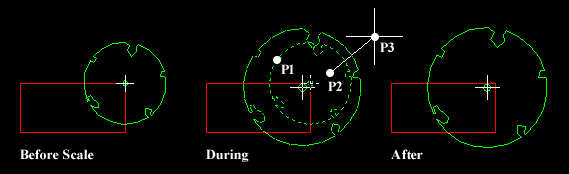
In the example shown above, the original tree symbol has been enlarged by dynamically scaling it using pick points to determine the change in scale. If you want to scale an object precisely, it is much easier to enter a scale factor using the keyboard.
Note that the position of the new sized tree symbol is determined by the location of the base point. The base point, P2 has been picked to the upper right of the centre of the tree which resulted in the centre of the tree shifting to a lower left position. If the base point had been picked in the centre of the tree symbol, the tree would have remained in the same position. In theory the base point can be any point in the drawing area but for ease of control it is best to choose a known point so that the results are obvious.
 Command Sequence
Command: SCALE
Select objects: (pick objects to be scaled, P1)
Select objects:
(to end selection)Specify base point: (pick base point, P2)
Specify scale factor or [Reference]: (pick second point, P3 or enter scale factor)
In the example shown above, the original tree symbol has been enlarged by dynamically scaling it using pick points to determine the change in scale. If you want to scale an object precisely, it is much easier to enter a scale factor using the keyboard.
Note that the position of the new sized tree symbol is determined by the location of the base point. The base point, P2 has been picked to the upper right of the centre of the tree which resulted in the centre of the tree shifting to a lower left position. If the base point had been picked in the centre of the tree symbol, the tree would have remained in the same position. In theory the base point can be any point in the drawing area but for ease of control it is best to choose a known point so that the results are obvious.